

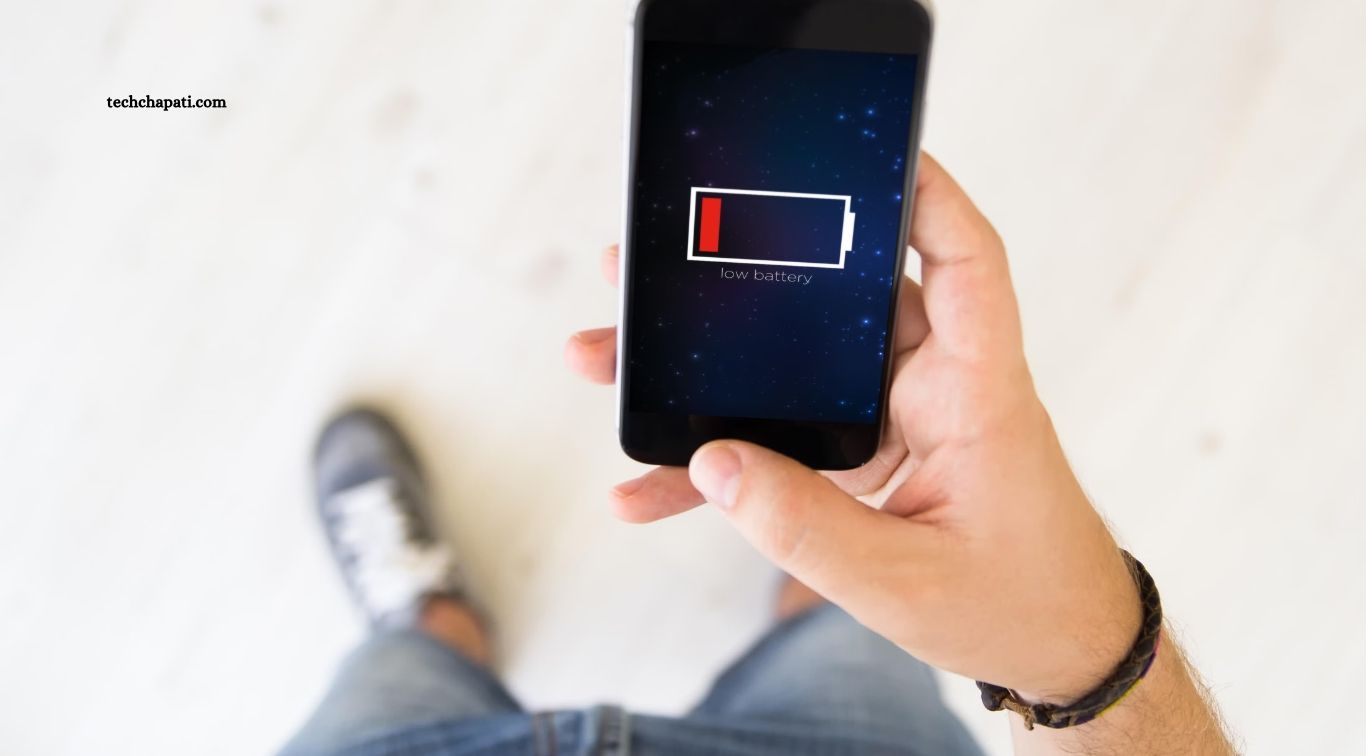
Smartphones have become essential for communication, entertainment, work, and everyday tasks. However, battery life can become frustrating when a phone loses power quickly or struggles to last throughout the day. Heavy app usage, high screen brightness, background activity, and poor network signals can all increase battery consumption.
The good news is that a few simple smartphone battery tips can help your device last longer between charges. Adjusting display settings, managing applications, improving charging habits, and keeping your phone updated can reduce unnecessary power usage. These practical changes can also help maintain battery health over time.
Read More: Android vs iPhone: Which Smartphone Offers Better Value?
Reduce Screen Brightness to Save Battery
Your smartphone display can consume a significant amount of power, especially when brightness remains high for long periods. Keeping the screen brighter than necessary can drain the battery faster while browsing, watching videos, playing games, or reading messages. Lowering brightness to a comfortable level is one of the easiest ways to extend daily battery life.
Automatic brightness can also help by adjusting the display according to surrounding light conditions. You can reduce the screen timeout so the display turns off shortly after you stop using the phone. On devices with OLED or AMOLED screens, dark mode may reduce power consumption when many interface elements appear black, although the actual savings depend on the display and content.
Enable Battery Saver Mode
Battery Saver or Low Power Mode helps your phone conserve energy by limiting selected background activities and system features. Depending on the device, this mode may reduce performance, restrict automatic syncing, delay notifications, or lower certain visual effects. It can be especially useful when your battery level drops and you need your phone to remain available until the next charge.
You can usually enable this feature through the battery settings or quick settings panel. Some smartphones also allow automatic activation when the battery reaches a chosen percentage. Although Battery Saver can extend usage time, certain apps may update less frequently while it is enabled. Review its restrictions if you depend on immediate notifications for work or communication.
Manage Apps That Consume Too Much Power
Some applications use more battery than others because they frequently access the internet, track location, play media, or perform background tasks. Social media platforms, navigation apps, video services, and demanding games can consume substantial power during extended use. Checking your phone’s battery usage report helps identify which applications are responsible for the highest energy consumption.
Once you identify power-hungry apps, consider reducing unnecessary usage or changing their background permissions. Close or restrict applications that continue running when they are not needed, but avoid repeatedly force-closing every app without a reason. Modern operating systems manage many background processes automatically, and constantly reopening applications may use additional energy rather than saving it.
Turn Off Unnecessary Location Services
GPS and location services help navigation, weather, delivery, fitness, and other applications provide useful information. However, apps that repeatedly access your location can increase battery consumption, particularly when combined with mobile data and frequent background updates. Reviewing location permissions can help reduce unnecessary activity without disabling useful features completely.
Set location access to options such as “While Using the App” whenever continuous tracking is unnecessary. You can also disable location services temporarily when you do not need them. Keep in mind that navigation, emergency features, device tracking, and fitness applications may require location access to work properly. Adjust permissions according to your needs rather than turning off every location feature indiscriminately.
Use Wi-Fi Instead of Mobile Data When Practical
Mobile data can consume considerable power in areas with weak cellular coverage because a phone may work harder to maintain a reliable connection. Activities such as video streaming, downloading large files, and online gaming may increase battery usage when performed over a poor mobile signal. Connecting to a stable Wi-Fi network can reduce energy consumption in many everyday situations.
However, Wi-Fi does not always use less power under every condition. A weak Wi-Fi signal can also drain the battery, and some devices may switch between connections depending on their settings. If you are in an area with very poor cellular reception and do not need calls or mobile connectivity, Airplane Mode may help conserve energy. Remember that it disables cellular connections until you turn them back on.
Reduce Background App Refresh and Syncing
Many smartphone apps update information even when you are not actively using them. Email services, cloud storage, social networks, and news applications may refresh content or synchronize files in the background. While these functions improve convenience, frequent updates can use battery power and mobile data throughout the day.
Review your device settings to limit background activity for applications that do not need constant updates. You can also adjust email synchronization intervals, disable unnecessary automatic downloads, and pause cloud uploads when battery levels are low. Keep essential services enabled if you rely on timely messages, work notifications, or data backups. The goal is to reduce unnecessary activity without interrupting important functions.
Avoid Extreme Temperatures
Temperature has a major effect on smartphone battery performance and long-term health. Excessive heat can accelerate battery aging, while very cold conditions may temporarily reduce available battery capacity. Leaving your phone in direct sunlight, inside a hot car, or near a heat source can increase the risk of overheating and may cause the device to limit performance or charging speed.
To protect your battery, keep your phone in a moderate-temperature environment and avoid covering it with thick materials during demanding tasks. If the device becomes unusually hot while charging or gaming, pause the activity and allow it to cool naturally. Do not place an overheated phone in a refrigerator or freezer, because sudden temperature changes and condensation can damage the device.
Follow Better Smartphone Charging Habits
Modern smartphones generally use lithium-ion or lithium-polymer batteries designed to be recharged regularly. You do not need to drain the battery completely before charging it. In fact, repeatedly allowing the battery to reach zero can create unnecessary stress over time. Charging when convenient and avoiding frequent deep discharges can help support long-term battery health.
Many devices include optimized charging, adaptive charging, or a charge limit feature. These settings may slow charging near full capacity or limit the maximum charge to reduce battery aging, depending on the model. If you keep your phone for several years, consider enabling these features when available. Use compatible, reputable chargers and cables, and avoid charging equipment that shows damage or signs of overheating.
Turn Off Features You Are Not Using
Features such as Bluetooth, personal hotspots, NFC, and certain wireless services can consume power when actively searching for connections or supporting connected devices. Their battery impact varies, and simply leaving some features enabled may have little effect on modern phones. Still, switching off functions you do not need can help reduce unnecessary activity in particular situations.
For example, disable your personal hotspot when other devices are no longer connected, and disconnect accessories you rarely use. If you are travelling through an area without cellular coverage, Airplane Mode may help preserve battery power. Avoid disabling essential features simply for the sake of saving a small amount of energy. Focus on functions that are actively consuming power rather than assuming every wireless setting causes significant drain.
Keep Your Smartphone Software Updated
Operating system updates can improve performance, fix bugs, and address problems that affect battery usage. Sometimes, an application or system process may consume excessive power because of a software issue. Installing official updates and keeping frequently used apps current can help resolve certain problems and improve device stability.
However, battery performance may temporarily change after a major update while the phone indexes files, synchronizes data, or completes background tasks. If battery drain continues for several days, review the battery usage report and check for apps that consume unusually high power. Restarting the phone may help resolve temporary issues. If the battery still drains rapidly, inspect its health status or contact an authorized repair service.
Check Battery Health and Replace an Aging Battery
Smartphone batteries gradually lose their ability to hold a full charge as they age. Over time, you may notice shorter usage periods, unexpected shutdowns, slower performance under certain conditions, or a battery percentage that drops unusually quickly. These changes can occur even when your settings and daily habits remain the same.
Many smartphones provide battery health information through their settings, although the available details differ by manufacturer. If the battery has significantly degraded, changing settings may offer only limited improvement. A professional battery replacement can restore much of the device’s original runtime when the battery is the main problem. Choose an authorized or reputable repair provider, particularly if the phone has a swollen battery, physical damage, or charging problems.
Frequently Asked Questions
How can I make my phone battery last longer each day?
Reduce screen brightness, enable Battery Saver, and limit unnecessary background activity.
Does dark mode save battery?
It can save power on OLED and AMOLED screens, especially when displaying mostly black backgrounds.
Is it bad to charge my phone overnight?
Modern phones manage charging automatically, but optimized charging or charge limits can help reduce long-term battery aging.
Should I let my battery reach zero before charging?
No. Regularly draining a lithium-based battery completely is unnecessary and may contribute to battery wear.
Does Bluetooth drain smartphone battery?
Bluetooth usually uses relatively little power when idle, but active connections and connected devices can consume more energy.
When should I replace my smartphone battery?
Consider replacement when battery health has significantly declined, runtime becomes inconvenient, or the phone experiences battery-related problems.
Conclusion
Improving smartphone battery life does not always require a new device or expensive accessories. Simple changes, such as reducing brightness, managing background apps, limiting unnecessary location access, and enabling power-saving features, can help your phone last longer between charges. Good charging habits and protection from extreme temperatures also support long-term battery health. If your smartphone continues to lose power quickly despite these adjustments, check battery usage statistics and battery health information.

1 Comment
Pingback: How to Choose a Smartphone That Meets Your Everyday Needs - Tech Chapati